
The Enphase Installer Toolkit, now officially called the Enphase Installer App, is the primary tool solar professionals use to commission, configure, and monitor Enphase microinverter systems on-site. Whether you’re logging in for the first time or troubleshooting a commissioning issue, knowing your way around this app is essential for getting a system online correctly.
At Advance Solar & Spa, we’ve commissioned thousands of Enphase systems across Florida as an Enphase Platinum Installer. Our crews use this app daily, so we know exactly where people get stuck, from login errors to device detection issues during activation. That hands-on experience is what this guide draws from.
Below, we’ll walk you through how to download the app, log in to your installer account, and complete the commissioning process step by step. We’ll also cover common problems that come up in the field and how to resolve them, so you can get the system running without unnecessary delays.
What the Enphase Installer Toolkit is now
Enphase renamed the Enphase Installer Toolkit to the Enphase Installer App in recent years, but the core function stayed the same. The app is your primary on-site tool for commissioning Enphase microinverter systems, including IQ8 series microinverters, IQ Batteries, and IQ Gateway devices. If you’ve searched for the old toolkit and landed somewhere confusing, that’s why. The branding changed, but the job it does did not.
What changed with the rebrand
The original Installer Toolkit was a web-based interface that required a laptop and a browser on-site. Enphase replaced it with a mobile-first app available on both iOS and Android, which removed the need to carry extra equipment during an install. The shift also introduced Bluetooth-based communication with the IQ Gateway, replacing the older Wi-Fi Direct pairing method and making device detection faster and more reliable in the field.
The Enphase Installer App is the current, supported version of the tool. If you’re still referencing the old Installer Toolkit workflow, some steps will no longer match what you see on-screen.
What the app covers
The app handles the full commissioning workflow from a single interface. You can create and manage job sites, pair with the IQ Gateway, scan and assign microinverters to specific array positions, and run a complete system check before you leave the property. It also connects directly to Enphase Enlighten, the cloud-based monitoring platform, so the homeowner’s system is live and actively reporting by the time you wrap up commissioning.
Downloading the app is straightforward. Go to the Apple App Store or Google Play Store, search "Enphase Installer," and install the app published by Enphase Energy. You’ll need an active Enphase installer account with the correct role permissions to log in, which the next step walks you through in detail.
Step 1. Set up access and sign in
Before you open the app on-site, you need an active Enphase installer account with the correct permissions assigned. Without the right role, the app will let you log in but block you from commissioning any devices. Your account must be set up through the Enphase Installer Network (EIN), which is the portal Enphase uses to manage contractor credentials and system access.
Create or verify your installer account
If your company is already registered on the EIN, your system administrator can add you as a user and assign the "Installer" role directly from the company dashboard. If you’re setting up a new company account, submit a registration request at enphase.com. Confirm your role permissions before heading to a job site, since missing permissions are the most common reason the app blocks commissioning access.
To get your account ready, follow these steps in order:
- Go to enphase.com and navigate to the Installer Network portal.
- Register your company or ask your administrator to add your user account.
- Verify your role is set to "Installer" in the account settings.
- Download the Enphase Installer App from the App Store or Google Play.
Log in to the app
Open the Enphase Installer App and enter your EIN email and password on the login screen. Tap "Sign In" and the app will sync your assigned job sites automatically.
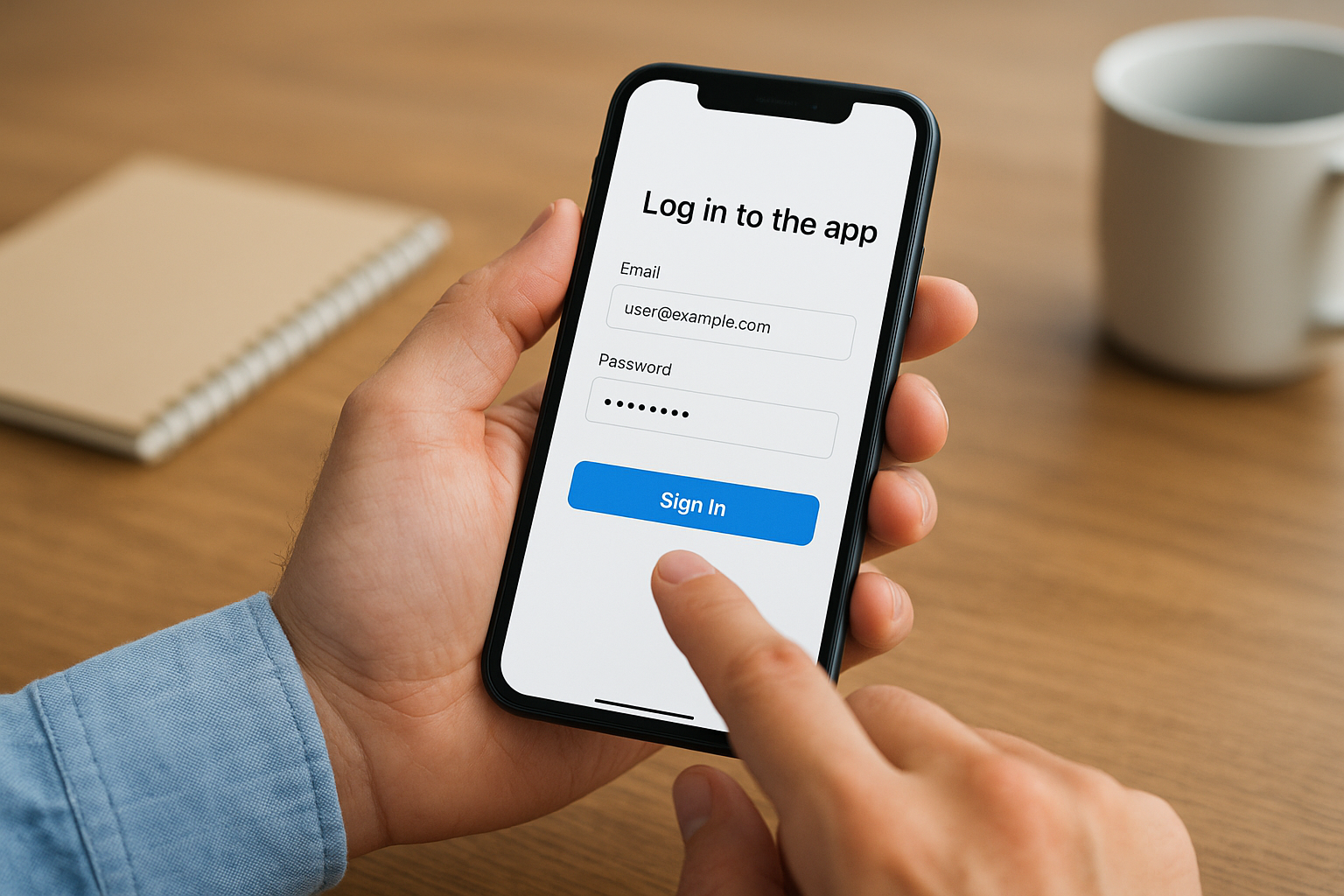
If login fails, check that your role is set to "Installer" and not "Homeowner," since the app restricts commissioning access based on account role.
You may recognize parts of the interface if you’ve used the older Enphase Installer Toolkit before. The core navigation stayed consistent, so existing users typically get comfortable with the updated layout within a session or two.
Step 2. Connect to the site and the gateway
Once you’re logged in, the app displays a list of job sites assigned to your account. Select the correct site before doing anything else on the roof or in the electrical room. Working under the wrong site is a common field mistake that creates reporting errors in Enlighten that take time to untangle later.
Open the job site in the app
Tap the site name from your dashboard to open the project. If the site doesn’t appear, confirm that your administrator created it in Enlighten and assigned it to your installer account. You can also create a new site directly from the app if you have the appropriate permissions, but most companies build sites in the desktop portal before sending crews out.
Always confirm the site address before you start scanning devices. Assigning microinverters to the wrong site will require a manual device transfer through Enphase support.
Pair with the IQ Gateway via Bluetooth
Stand within 15 feet of the IQ Gateway and tap "Connect to Gateway" inside the site. The app will scan for nearby gateways using Bluetooth and display any it finds. Select your device by serial number, which you can verify on the label affixed to the gateway enclosure. This Bluetooth pairing step replaced the older Wi-Fi Direct method used in the original Enphase Installer Toolkit workflow and generally completes in under 30 seconds on a fully powered gateway.
Step 3. Build the array and scan devices
With the gateway paired, you’re ready to build the array layout inside the app. This step maps each microinverter to a physical position on the roof, which is what makes Enlighten’s per-panel production monitoring accurate. Skipping this step or rushing through it causes reporting gaps that are frustrating to fix after the homeowner is already using the system.
Map your array layout
The app lets you create rows and columns that represent your actual roof sections. Name each sub-array clearly using something descriptive, like "South Roof" or "Garage East," so the homeowner can read the monitoring data without needing you to explain it later. Add the correct number of inverter positions to match your physical install before you start scanning.
Getting the layout right before scanning saves you from manually reassigning devices on-site, which the original Enphase Installer Toolkit workflow made far more tedious.
Scan and assign microinverters
Tap "Scan Devices" and use your phone’s camera to scan the QR or bar code on each microinverter. The app reads the serial number and adds the device to an unassigned pool. From there, drag each device into its correct position on the array map you built.
Follow this sequence to stay organized:
- Scan all microinverters on one roof section before moving to the next.
- Assign devices to array positions immediately after scanning each section.
- Verify the total device count matches your bill of materials before moving to commissioning.
Step 4. Commission, validate, and hand off
With every microinverter scanned and assigned, tap "Commission System" inside the app to activate the array. The IQ Gateway polls each device and the app displays a real-time status for every microinverter as it responds. This process typically takes 2 to 5 minutes depending on array size.
Run the commissioning check
The app marks any device that fails to report with a red status indicator. For each flagged unit, check that AC power is present, the microinverter is seated firmly on the rail, and the serial number matches your scan record. Most failures at this stage come from a loose connection or a device that wasn’t fully powered when the scan ran. Correct the issue and re-run the check before moving on.
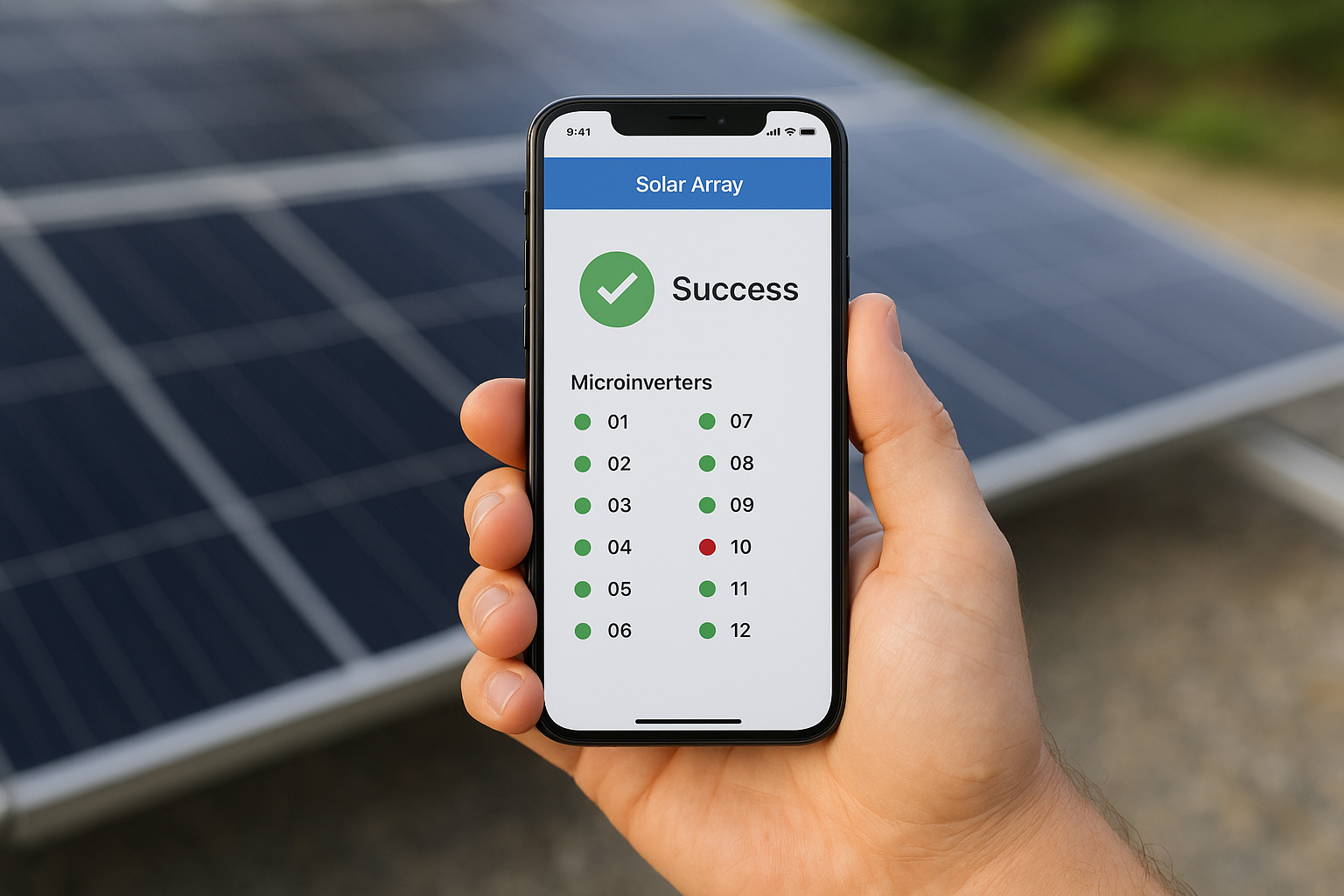
A system that passes commissioning with even one unresolved fault will show incomplete production data in Enlighten from the first day it’s live.
Hand off to the homeowner
Once the system passes, verify that live production data appears in the app before you leave the property. The original Enphase Installer Toolkit workflow required separate steps to link the homeowner account, but the current app handles this automatically during commissioning.
Before wrapping up, run through this final checklist:
- Confirm all devices show green status in the app
- Verify the homeowner can access their Enlighten account
- Leave the gateway serial number with the homeowner for future service calls
Quick recap and next steps
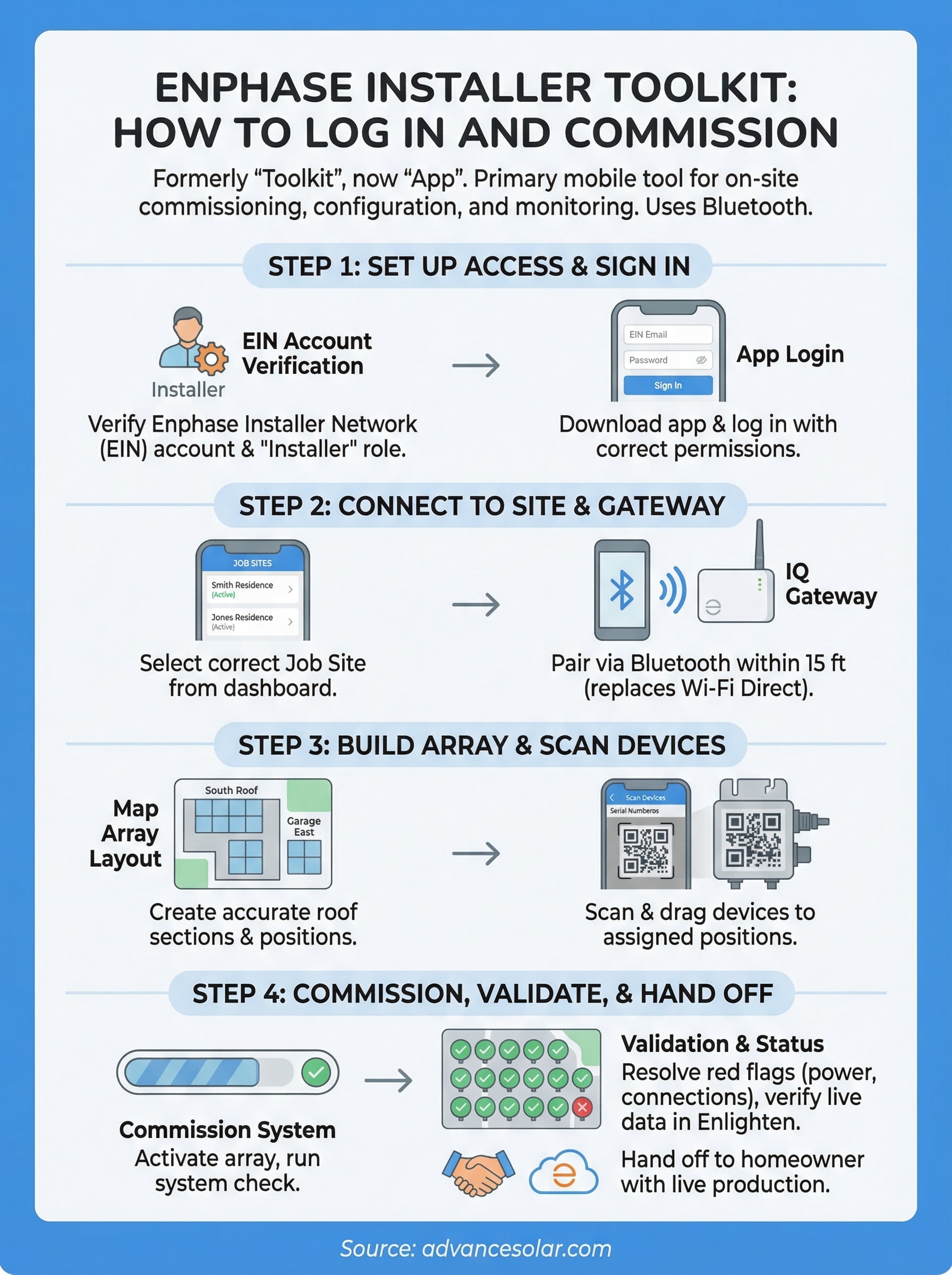
The Enphase Installer Toolkit, now called the Enphase Installer App, walks you through every phase of commissioning from a single mobile interface. You set up your EIN account and role permissions, pair with the IQ Gateway over Bluetooth, build your array layout, scan each microinverter into its assigned position, and run the final commissioning check before you leave the property. Follow that sequence on every job and you’ll avoid the most common field errors that push handoffs past schedule.
When a system fails commissioning or you hit persistent login and device detection issues, the problem usually traces back to account permissions or a loose connection rather than a hardware fault. Check those two things first before you escalate to Enphase support, and you’ll resolve most on-site problems without waiting on a callback.
Florida homeowners looking for a team that handles every step of this process from design through activation can get a free solar consultation from Advance Solar & Spa, an Enphase Platinum Installer with over 40 years of experience.